Email Signature
Guidelines for Your Merced College Email Signature
Every email that comes from Merced College reflects upon the institution. Using one simple, branded email signature across campus helps convey a unified visual identity and strengthens our overall brand.
NOTE:
- Your email should not include background colors, gradients or textures.
- Your email signature should not include special quotes, links or photos.
The image below is a sample of how the Merced College email signature should be constructed:
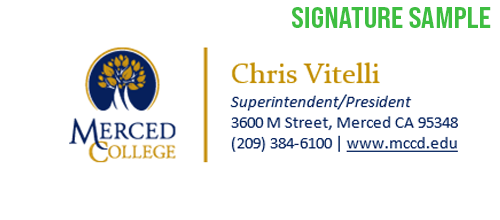
Exceptions to the email signature format must be approved. Work with the Office of External Relations to help ensure that your email signature is consistent with College standards.
How to Add Email Signature to Microsoft 365 Outlook (applicable to Outlook 2019)
(1) Step One
Click on the signature image below to open this file in your Chrome or FireFox browser. Do not use Internet Explorer.
Press CTRL + A to select the signature, then press CTRL + C to copy the signature.
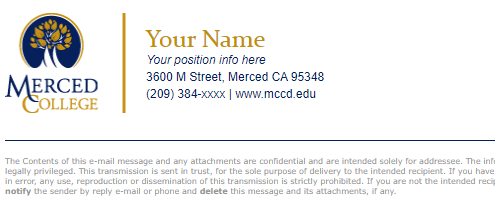
IMPORTANT: Do not use your mouse to select the area, only
use Ctrl + A to insure all elements are selected.
(2) Step Two
Open MS Outlook 365.
(3) Step Three
Once Outlook is open, click the File tab in the Outlook menu, then select Account Info.

(4) Step Four
Select Signatures on the left hand side.

(5) Step Five
Click on New signature and type a name for your email signature, press OK.
(6) Step Six
Paste your signature using CTRL + V into the text area.

NOTE: If the email signature preview in the settings area is cutting
off your email signature, do not worry, this is expected and is due to
the way the signature preview renders HTML signatures. Simply send
yourself a test email to verify that it displays correctly.
(7) Step Seven
Please Update “Your Name” and “Your position info here” placeholders with your information. Don’t forget to update the phone number.
IMPORTANT: Please do not press the enter key when updating your information. Place your mouse over the edits you want made to prevent styling issues.
(8) Step Eight
Click Save to accept your changes.
Questions About the Logo?
Office of External Relations
Phone: (209) 384-6176
Email: [email protected]