Printing & Copying
New Printing System
Launching October 12th, 2026
-
Merced Campus Printer Locations
Downey Learning Resource Center 1st and 2nd Floors
-
Los Banos Campus Locations
Los Banos Library
-
Printing Cost
Black & White: $0.10
Color: $0.15
Printing Instructions
Information coming soon. See Questions and Answers below for more information.
Information coming soon. See Questions and Answers below for more information.
Resources
Information resources on the new printer system coming soon.
Questions and Answers
- Open a web browser on your computer or mobile device.
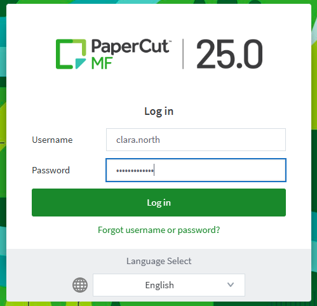
- Go to the Merced College Papercut login page.
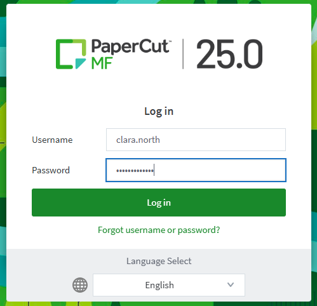
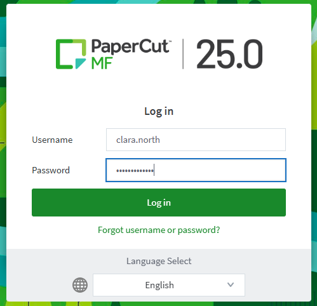
- Sign in with your Merced College credentials and click “Log in”
Online payments are processed through Touchnet uPay
Online: Debit or Credit Card
Kiosk: Debit card or Credit Card
How To Add Credit to Your Account Through the Papercut Dashboard (Online)
- Log in to your Papercut account using your Merced College credentials.
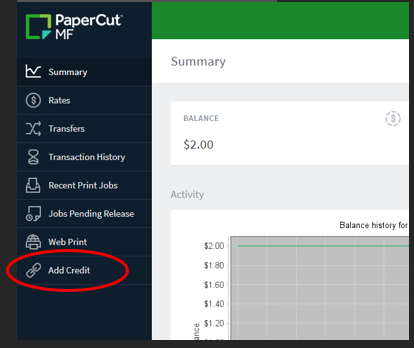
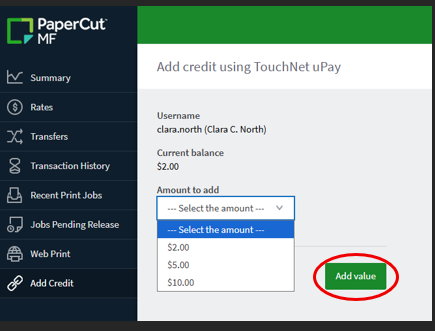
- On the left-hand menu, click “Add Credit”.
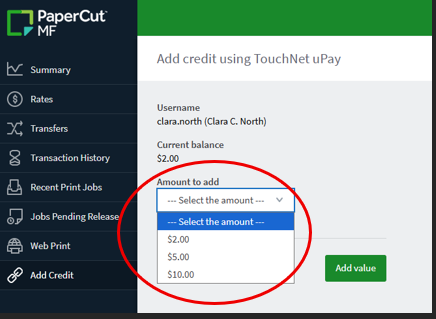
- Choose the amount you want to add by using the drop-down menu under “Amount to Add”.
- Click “Add value”.
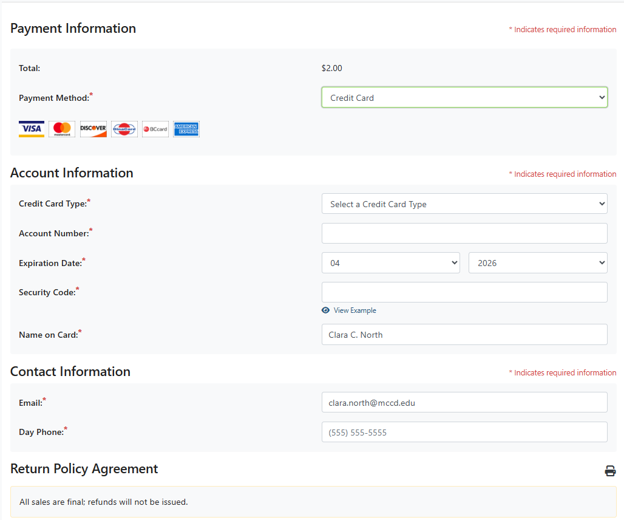
- Select your payment method and follow the on-screen prompts to complete your payment.
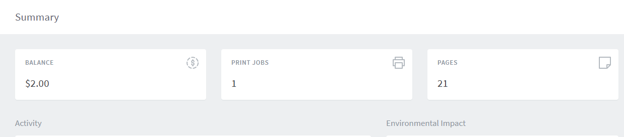
- Confirm that your new balance appears on the Summary page.
How to Add Credit to Your Account Using the Campus Kiosk
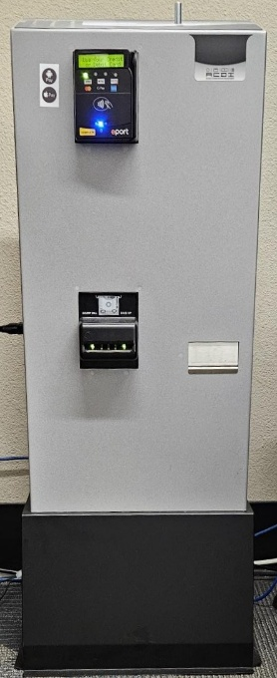
Note: Kiosks are located on the Main campus in the Downey Learning Resource Center (Library), first floor and in the Hub. In Los Banos, the kiosk is located in the Library.
- Locate a Papercut payment kiosk on campus (found in the Downey Learning Resource Center (library) or The Hub. Los Banos campus kiosk is located in the Library).
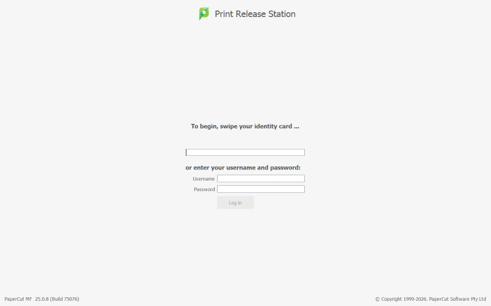
- On the Print Release Station, enter your Merced College ID number or Username and Password.
- Insert cash, card, or other accepted payment method as shown on the kiosk.
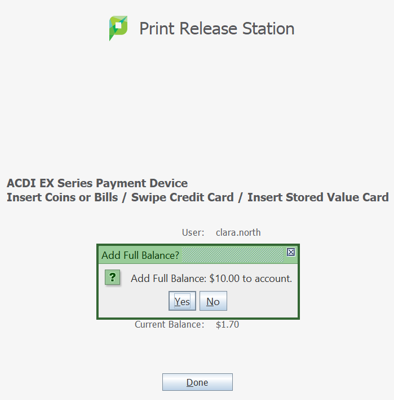
If using a debit card or other accepted payment method: - On the Print Release Station, It will automatically ask you if you want to add the maximum amount of $10.00. If you wish to add less, click “No”
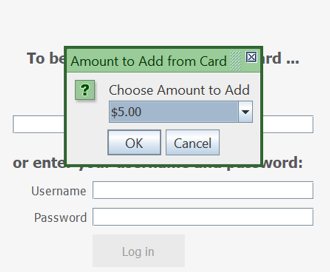
- Use the drop-down arrow to select the amount you wish to add, then click “OK”
- Confirm the updated balance displayed on the screen.
- Log in to your Papercut account.
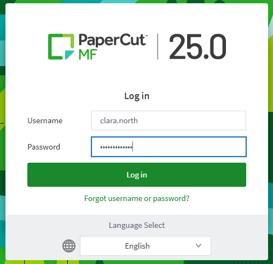
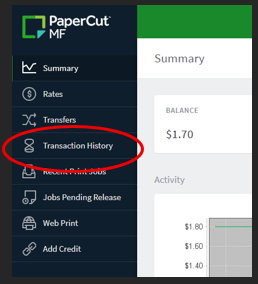
- From the Papercut dashboard, click Transaction History on the left-hand menu.
- Review the list of charges (print jobs) and credits (added funds).

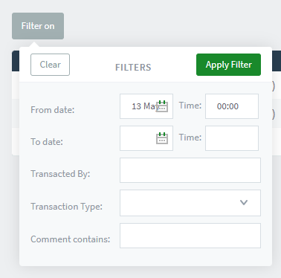
- Use the date filters if you need to see activity for a specific time period.
Printing from College Computers
- Log in to a campus computer using your Merced College credentials.
- Open the document you want to print.
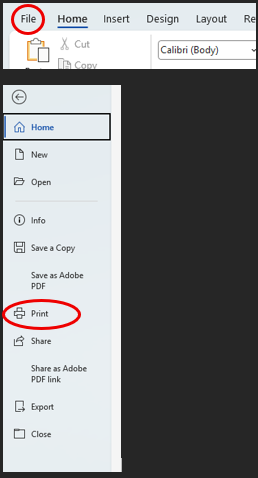
- Go to File > Print.
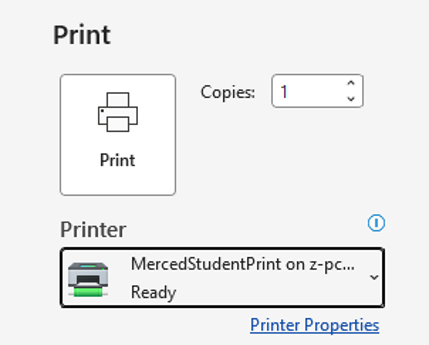
- Select the appropriate Papercut-managed printer or print queue.
- Adjust your print settings if needed.
- Click Print. Note: Your job will be held in the Papercut queue until you release it at a printer.
Printing from a Personal Laptop or Computer.
Use Web Print to upload documents directly from your browser without installing printer software.
- Log in to your Papercut account.
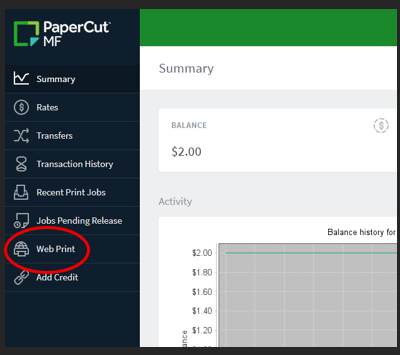
- In the left-hand menu, click Web Print.
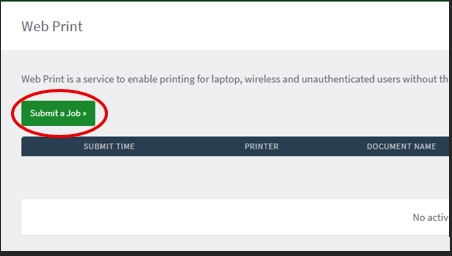
- Click Submit a Job.
- Select the printer or print queue you want to use.
- Click Print Options and Account Selection.
- Enter the number of copies you want to print, then click Upload Documents.
- Click Choose Files and select the document(s) you want to print.
- Click Upload & Complete to send your job to the print queue.
Mobile Prints
You can also send print jobs from your phone or tablet, depending on the options enabled by Merced College.
- Open a browser on your mobile device and go to the Papercut login page.
- Sign in with your Merced College credentials.
- Tap Web Print or the mobile printing option provided.
- Upload your document or follow the on-screen instructions to send your file to the print queue.
Papercut uses secure release, which means your documents only print when you are at the printer.
Log In at the Printer
- Go to a Papercut-enabled printer on campus.
- On the printer’s screen, select Papercut or Release Jobs.
- Log in using one of the available methods:
- Enter your Merced College username and password, or
- Tap your student ID card.
Release Your Print Jobs
- After logging in, you will see a list of your pending print jobs.
- Review the document names, page counts, and costs.
- Select the job(s) you want to print.
- Tap Print or Release.
- Collect your printed documents.
Cancel a Job Before Printing
- On the job list screen, select the job you no longer want to print.
- Tap Cancel or Delete.
- Confirm the cancellation if prompted.
Copying
- Log in at the device.
- Select Copy.
- Place your document on the scanner.
- Choose your copy settings.
- Tap Start.
Common Issues
- My job is not showing up at the printer: Make sure you sent it to the correct print queue.
- I cannot log in: Verify your Merced College username and password.
- My balance is too low: Add credit.
- Printer error (paper jam, toner, etc.): Notify staff.
Getting Help
For additional assistance with Papercut or student printing, contact the Merced College IT Help Desk. Include your student ID, a brief description of the issue, and the printer location when requesting help.